


Most popular christmas backgrounds
Christmas Powerpoint Background with golden baubles, snow and lights
Download
Free · HD

Winter Snow PPT Background
Download
Free · HD

Christmas Free PPT Background
Download
Free · HD

Christmas Free PPT Background
Download
Free · HD

Christmas Snowflakes Free PPT Background
Download
Free · HD

Christmas Free PPT Background
Download
Free · HD


Christmas Snow & Trees Free PPT Background
Download
Free · HD

Green Christmas Background with Snow and Santa Figures
Download
Free · HD
Blue Christmas background for PowerPoint with red and gold baubles
Download
Free · HD

Christmas Background with Lights, hanging red and gold Baubles
Download
Free · HD

Christmas Powerpoint Background with baubles, snow and bokeh lights
Download
Free · HD

Classic Red, Gold & Green Christmas Backgrounds

Christmas Snowman Frame Background for PowerPoint with Red Ornaments and Gold Label
Download
Free · HD

Christmas Cabin Frame Background for PowerPoint with Snowy Village and Light Strings
Download
Free · HD

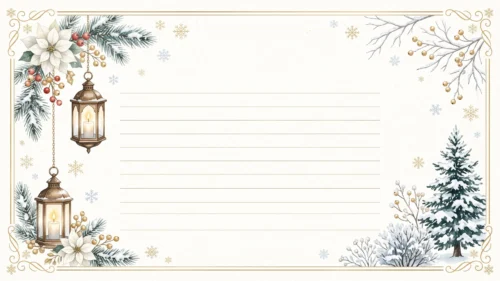

Green Christmas Background For Google Slides With Gold Baubles And Red Berries Down The Left
Download
Free · HD

Red Christmas Background For Google Slides With A Fir Garland, Fairy Lights And Gold Baubles
Download
Free · HD

Christmas Border Background For PowerPoint With Gold And Red Ornaments On Dark Green
Download
Free · HD

Green Christmas Frame Background for PowerPoint with Gold Baubles, Candy Cane and Starry Sky
Download
Free · HD

Green Christmas Flat Lay Background for PowerPoint with Gold Gift Bow and Sage Backdrop
Download
Free · HD

Green Christmas Background for PowerPoint with Gold Ribbon, Silver Baubles and Stars
Download
Free · HD

Red Christmas Background for PowerPoint with a Pine Garland Border, Pinecones and Wire Stars on the Left
Download
Free · HD

Snow & Winter Backgrounds

White Snow Sparkle Texture Background for PowerPoint
Download
Free · HD

Winter Sunset Background for PowerPoint with Frosted Fern Snow
Download
Free · HD

Winter Snow Background for Google Slides with Frosty Bokeh Night
Download
Free · HD

Forest Background For PowerPoint With A Magical Lantern-Lit Road
Download
Free · HD

Winter Background with Sunlit Snowdrifts and Frosted Pines
Download
Free · HD


Winter Background For PowerPoint With A Glowing Snowy Forest Path
Download
Free · HD
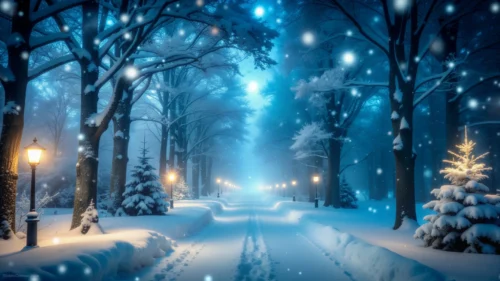
Winter Background with Snow and Twinkling Golden Lights
Download
Free · HD



Christmas Trees, Baubles & Lights
Gold Christmas Background with a Crystal Snowflake Vine
Download
Free · HD






Green Christmas background with ornaments and tree branches
Download
Free · HD


Red Christmas background with hanging gold baubles and flowers
Download
Free · HD

Christmas Powerpoint Background with golden baubles, snow and lights
Download
Free · HD