

Valentine Hearts Background For PowerPoint With a Glossy Heart Garland
Free valentine hearts background for PowerPoint with a glossy heart garland and paper-cut clouds, HD 16:9.
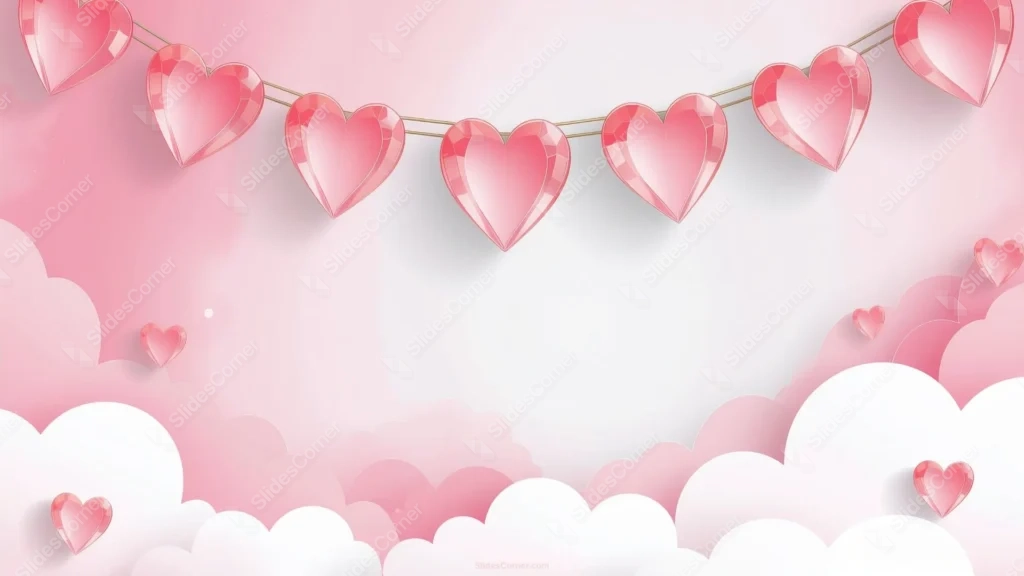
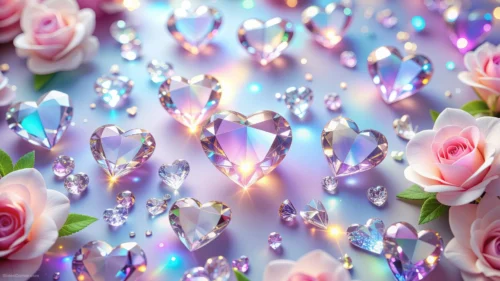
This valentine hearts background for PowerPoint hangs a garland of glossy, gem-like pink hearts across the top of the frame, strung like party bunting and casting soft shadows onto a pale pink sky.
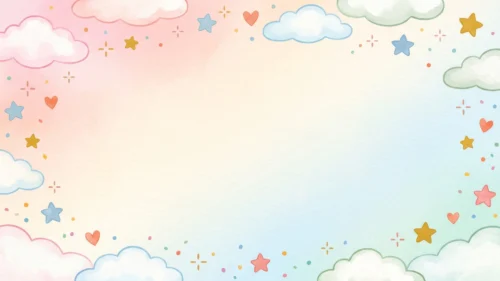
Layered white and pink paper-cut clouds stack along the bottom, with a few small hearts floating freely among them, while the exact center brightens into a calm white-pink glow.
What This Valentine Hearts Background For PowerPoint Looks Like
Each heart on the garland has a faceted, gem-like surface with visible highlights, giving them real dimension rather than the flat look of a typical clip-art heart.
The paper-cut clouds along the bottom layer in soft, rounded shapes, some white, some blush pink, giving the lower third a whimsical, storybook quality.
Between the garland above and the clouds below, the center stays open and bright, a calm gap built specifically for a title or a short message.
Where This Valentine Hearts Background Fits
It’s built for Valentine’s Day party invitations, romantic brand campaigns, engagement and proposal announcements, kids’ classroom Valentine’s activities, and greeting card marketing.
The garland-and-clouds framing also works well for a countdown slide or a save-the-date, since the open center reads instantly as the spot for the date or headline.
Design Choices Behind the Garland and Clouds
I used a garland instead of scattered hearts because bunting reads immediately as a celebration setup, tying the piece directly to a Valentine’s event rather than a generic love theme.
Giving each heart a glossy, faceted surface instead of flat color adds a premium, tactile quality, something that catches light like it’s actually worth celebrating.
The paper-cut clouds at the bottom soften the transition from the busy garland at the top down to the open center, and they add a lighter, storybook feel to the whole piece.
How to Apply It in PowerPoint
- Open your slide, go to Design > Format Background.
- Choose Picture or texture fill, then Insert from file and select the downloaded image.
- Click Apply to All for the whole deck, or leave it on a single title or invitation slide.
How to Apply It in Google Slides
- Open Slide > Change background.
- Click Choose image and upload the downloaded file.
- Select Done. Repeat on each slide you want to match, since Slides applies backgrounds one at a time.
Legibility Tip for This Valentine Hearts Background
Keep text in the bright center gap between the garland and the clouds. Dark rose or charcoal type reads best there; avoid placing text directly under the hanging hearts, where soft shadows sit.
Frequently Asked Questions
Is this valentine hearts background free?
Yes, it’s a free download with no watermark and no account required.
Does it work in Google Slides too?
Yes. It’s a standard image file, so it uploads and applies the same way it does in PowerPoint.
What resolution is included?
1920×1080 px, HD 16:9, suited to slides and to a desktop or phone wallpaper.
Can I use it as a wallpaper?
Yes, the 16:9 ratio matches most laptop and desktop screens.
Features at a Glance
- HD 1920×1080 resolution, 16:9 ratio
- Free download, no watermark
- Glossy, faceted heart garland strung across the top
- Layered paper-cut clouds and floating hearts along the bottom
- Bright open center built for a title or message
- Works as a PowerPoint background, Google Slides background, or wallpaper
Specs
- 1920 x 1080 px · 16:9 widescreen
- JPG, high quality, no compression artefacts
- PowerPoint · Google Slides · Keynote · Canva
- No watermark · no sign-up
- Free for personal and commercial use
You can use this as a Wallpaper or use it as a background for slides.
Looking for something different? Browse all our free PPT Backgrounds, or see how to set a background in PowerPoint and Google Slides.