
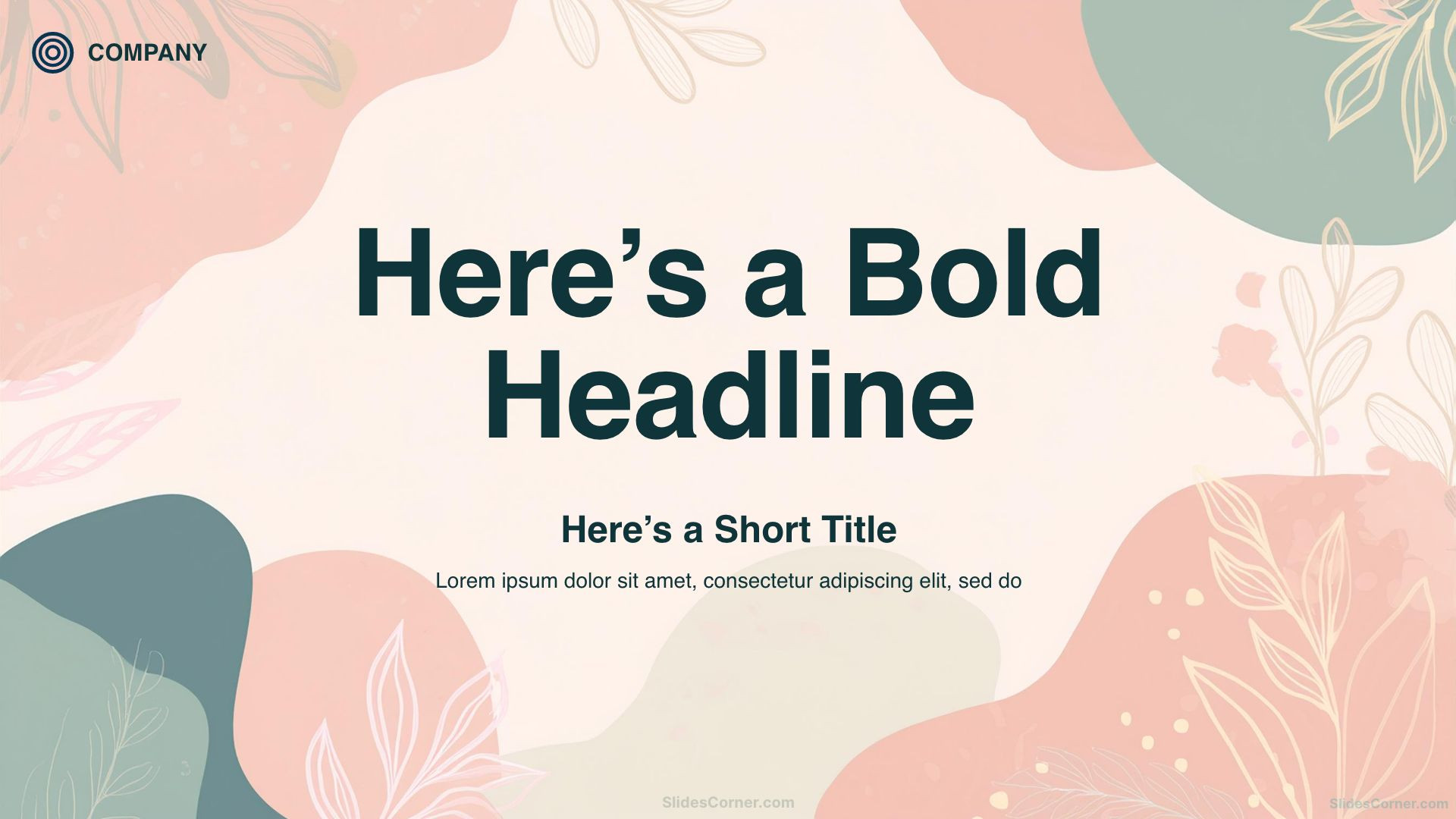
Changing a slide background takes less than a minute once you know where the option lives — but it’s buried in a different menu in every app, and the wording changes depending on whether you want an image, a plain colour, or the same background on every slide. This guide covers all of it, on desktop and on mobile, plus what to do when the background comes out stretched or blurry.
On this page
- Google Slides
- PowerPoint
- Keynote and Canva
- Choosing the right size
- Troubleshooting
- Tips for readable text
- Free backgrounds to get started
Change the background in Google Slides
- Open your presentation and select the slide you want to change.
- Click the Slide menu and choose Change background. (You can also right-click anywhere on the slide and pick Change background.)
- In the dialog, click Choose image next to Image, then Upload from computer and select your file.
- Click Done to apply it to the current slide only, or Add to theme to apply it to every slide in the presentation.
Use a colour or gradient instead of an image
Same dialog, different control. Click the Color dropdown and pick a solid colour, or open the Gradient tab to use a preset or build your own. This is often the better choice for text-heavy slides — a flat colour never competes with your content.
Apply to one slide or to every slide
This is the part most people get wrong, because the buttons don’t say what they do:
| Button | What it actually does |
|---|---|
| Done | Applies the background to the selected slide only |
| Add to theme | Applies it to every slide that uses the current theme |
| Reset to theme | Undoes your change and restores the original theme background |
If you want the background on most slides but not all, use Add to theme first, then go back to the exceptions and set them individually.
On iPhone, iPad and Android
The Google Slides mobile app is more limited than the web version. You can change the background colour of a slide, but uploading a full-bleed image background is not always available depending on your app version.
If you can’t find the option, there’s a reliable workaround that works on every version: insert the image, resize it to cover the whole slide, then send it to the back (tap the image → Arrange → Send to back). The result looks identical; it just isn’t technically a “background”.
For anything more than a quick fix, do it on a computer and open the presentation on your phone afterwards — the background travels with the file.
Remove or reset the background
Open Slide → Change background again and click Reset to theme. That restores whatever the theme originally used. If you applied the background with Add to theme, resetting affects every slide.
Change the background in PowerPoint
- Open your presentation and go to the Design tab.
- Click Format Background on the far right of the ribbon. A panel opens on the right side.
- Select Picture or texture fill, then click Insert and choose From a File.
- Pick your downloaded background. It applies to the current slide immediately.
- To use it across the whole deck, click Apply to All at the bottom of the panel.
On Mac
The route is the same — Design → Format Background — but the panel opens as a floating window rather than a docked sidebar, and the button is labelled Picture or Texture Fill with the file picker under Insert → Picture From → File. Everything else behaves identically, including Apply to All.
Use a solid colour or gradient
In the same Format Background panel, choose Solid fill and pick a colour, or Gradient fill to blend two or more. Under Solid fill you’ll also find a Transparency slider — useful for softening a colour that feels too strong behind text.
Apply to every slide
Apply to All sits at the bottom of the Format Background panel and applies your background to every slide in the presentation, including ones you add later. There’s no “apply to selected slides” option: for a subset, apply to all and then override the exceptions one by one.
Remove the background
Open Format Background and click Reset Background at the bottom of the panel. If you used Apply to All, you’ll need to reset each slide, or reset one and click Apply to All again.
Keynote and Canva
Keynote. Click on an empty area of the slide so nothing is selected. In the Format sidebar on the right, open the Background section and choose Image Fill, then Choose to pick your file. Set it to Scale to Fill so it covers the slide without distortion.
Canva. Open your design, click the page you want to change, then drag your image from the Uploads panel directly onto the page — it snaps into place as the background. To apply it to every page, right-click the image and choose Set image as background, then use Apply to all pages.
Choosing the right size
A background only looks clean when its proportions match the slide. Anything else gets stretched or cropped by the app.
| Format | Size | Use it for |
|---|---|---|
| 16:9 widescreen | 1920 × 1080 px | Standard PowerPoint, Google Slides and Keynote presentations |
| 9:16 vertical | 1080 × 1920 px | Instagram and Facebook Stories, Reels, TikTok, YouTube Shorts, phone wallpapers |
If your slides are set to 4:3 — an older default — a 16:9 background will be cropped on the sides. Either change the slide size (File → Page setup in Google Slides, Design → Slide Size in PowerPoint) or accept that the edges will be trimmed.
All backgrounds on SlidesCorner are supplied at these exact sizes, so they fill the slide with nothing cut off.
Troubleshooting
The background looks stretched. The image and the slide have different proportions. Check that you’re using a 16:9 file on a 16:9 slide. In PowerPoint you can also uncheck Tile picture as texture if the image is repeating.
It looks blurry or pixelated. The file is smaller than the slide. A 1920 × 1080 image is the minimum for a widescreen slide — anything below that gets scaled up and loses detail. Avoid images pulled from a web page or a search result thumbnail; download the full-size file.
The text isn’t readable. The background is competing with your content. Either pick a design with a calmer area where the text sits, or add a semi-transparent shape behind the text block: insert a rectangle, fill it white or black, and set transparency to around 40%.
The background disappeared after changing the theme. Applying a new theme overwrites background settings. Set the theme first, then apply your background.
It only changed on one slide. You clicked Done instead of Add to theme in Google Slides, or you skipped Apply to All in PowerPoint.
Tips for readable text
The background is a stage, not the show. A few things that consistently help:
- Leave the centre calm. Designs with the detail pushed to the edges or a corner leave the middle free for titles and body text.
- Contrast beats colour matching. Dark charcoal on a pale background reads better than a mid-tone that “goes with” the design.
- Test at presentation size. Text that looks fine while editing can vanish on a projector. Press Present or Slide Show and check from the back of the room.
- Keep one background per deck. Changing it slide to slide reads as inconsistent, not dynamic.
Free backgrounds to get started
Every background on SlidesCorner is free to download, with no sign-up and no watermark, in HD and ready for both PowerPoint and Google Slides.
- Browse all our free professional PPT backgrounds for business presentations
- See the full collection of aesthetic slide backgrounds in pastel and minimal styles
- Explore more medical backgrounds for PowerPoint for healthcare decks
- Find other plain backgrounds for PowerPoint in solid colours and gradients
- Check the rest of our history backgrounds for PPT — parchment, antique paper and medieval designs
- More free 9:16 mobile wallpapers for Stories, Reels and lock screens