




Cherry Blossom Background For PowerPoint With Diagonal Branch Corners
Download this free cherry blossom background for PowerPoint with clean white space and pink branches.
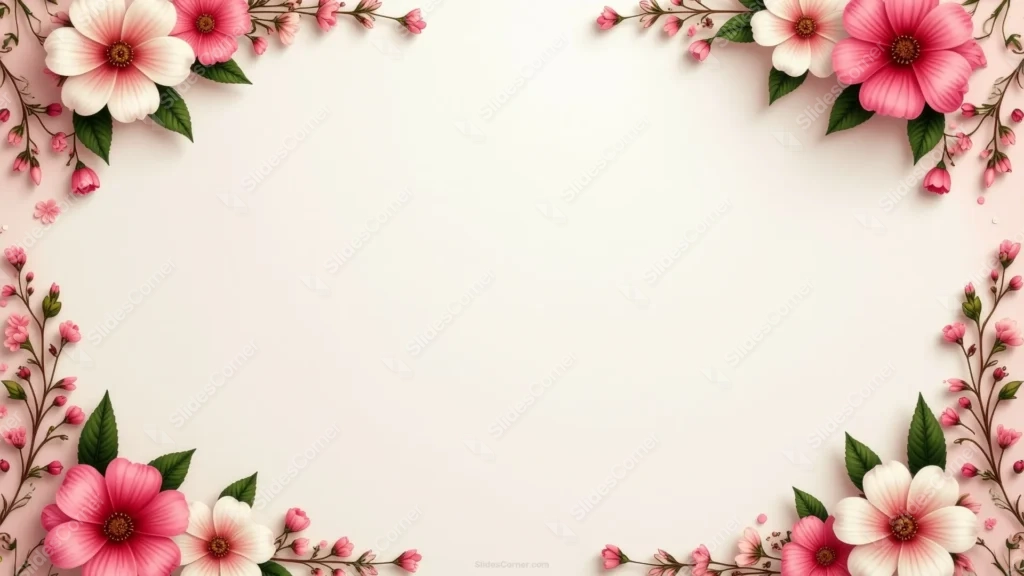
This cherry blossom background for PowerPoint keeps its background a clean, flat white, letting each pink and cream blossom cluster read crisp against it.
From each corner, thin branches reach diagonally into the frame, trailing smaller buds and blossoms as they go, rather than stopping in a single dense cluster.
What This Cherry Blossom Background Looks Like
Each corner opens with one or two large five-petal blossoms in soft white-to-pink gradients, paired with deep green leaves and one or two open buds.
From there, slender brown branches stretch further into the frame, dotted with tiny pink buds and the occasional small blossom, echoing a real branch tapering off.
The background stays a plain, even off-white throughout, with no staining or texture, keeping the focus fully on the blossoms and branches.
Where This Cherry Blossom Background For PowerPoint Fits
It suits spring event slides, wedding programs, Japanese-themed presentations, and any deck wanting a clean, seasonal touch rather than a heavily aged look.
The bright, open center also works well for photo slides or a short title and subtitle.
Design Choices Behind the Diagonal Branch Corners
I kept the background a clean, flat white rather than an aged or parchment tone, so the cherry blossom pink stays crisp and fresh instead of muted.
Letting the branches extend diagonally inward, trailing buds as they go, made each corner feel like a real branch reaching into the frame rather than a static cluster.
I left the whole center untouched and bright, so text or a photo placed there gets the strongest possible contrast against the white.
How to Apply It in PowerPoint
- Go to Design > Format Background.
- Choose Picture or texture fill, then Insert from file.
- Click Apply to All to use it on every slide.
How to Apply It in Google Slides
- Open Slide > Change background.
- Click Choose image and upload the downloaded file.
- Select Done, repeating on any other slides you want to match.
Legibility Tip for This Cherry Blossom Background
Since the background is plain white, almost any dark font color reads clearly, so keep text centered and clear of the branches trailing in from each corner.
Frequently Asked Questions
Is this cherry blossom background free?
Yes, it’s a free download with no watermark and no account required.
Does it work in Google Slides too?
Yes, it’s a standard image file, so it applies the same way in both PowerPoint and Google Slides.
What resolution is included?
1920×1080 px, HD 16:9, suited to slides and to a desktop or phone wallpaper.
Can I use it as a wallpaper?
Yes, the 16:9 ratio matches most laptop and desktop screens.
Features at a Glance
- HD 1920×1080 resolution, 16:9 ratio
- Free download, no watermark
- Clean, flat white background with no aging or texture
- Diagonal branch corners trailing buds and small blossoms
- Large five-petal cherry blossoms in soft white-to-pink tones
- Works as a PowerPoint background, Google Slides background, or wallpaper
Specs
- 1920 x 1080 px · 16:9 widescreen
- JPG, high quality, no compression artefacts
- PowerPoint · Google Slides · Keynote · Canva
- No watermark · no sign-up
- Free for personal and commercial use
You can use this Delicate Cherry Blossom Background For PowerPoint Presentations as a Wallpaper or use it as a background for slides.
Looking for something different? Browse all our free PPT Backgrounds, or see how to set a background in PowerPoint and Google Slides.