


Cherry Blossom Background For PowerPoint With A Mint Green Backdrop
Download this free cherry blossom background for PowerPoint with a mint green backdrop.
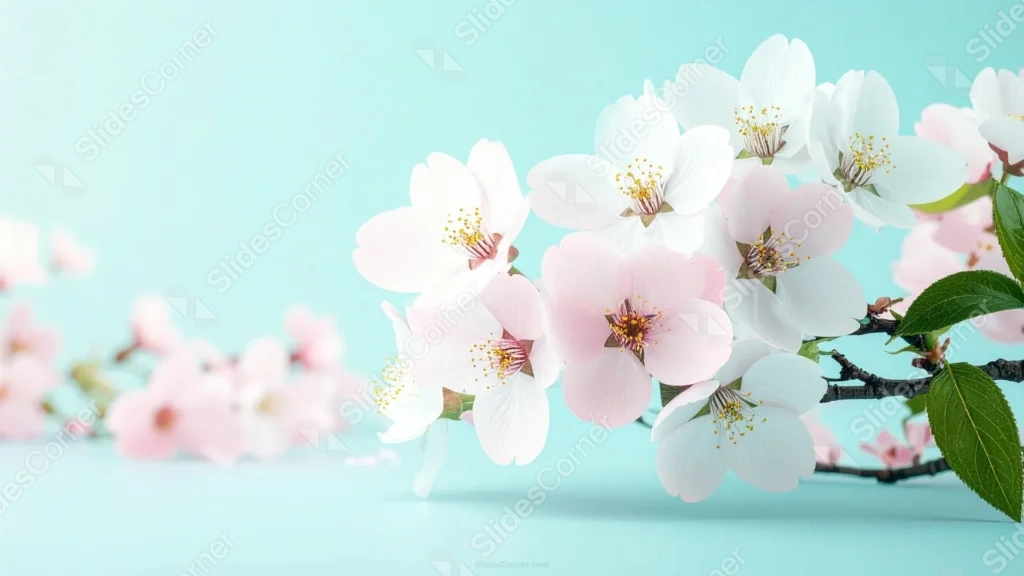
This cherry blossom background for PowerPoint sets a single hanging branch against a solid mint-teal backdrop, rather than the usual white or cream paper tone.
The main blossoms stay in sharp macro focus, while a second cluster blurs softly into the background on the left, giving the piece real photographic depth.
What This Cherry Blossom Background Looks Like
A branch enters from the top-right corner, hanging diagonally down and to the left, covered in white and soft pink five-petal blossoms with yellow centers.
A second, smaller cluster of blossoms sits blurred in the far background on the left, creating a genuine shallow depth of field rather than a flat illustration.
The solid mint-teal background stays smooth and even throughout, giving the pale petals a cool, fresh contrast.
Where This Cherry Blossom Background For PowerPoint Fits
It works well for spring product launches, beauty and skincare brand decks, wellness presentations, and any deck wanting a fresh, photographic floral touch.
The wide open left side leaves plenty of room for a title or a short product description.
Design Choices Behind the Mint Green Backdrop
I set the branch against a solid mint-teal backdrop, rather than white, so the pale pink and white petals get a cooler, more unusual contrast than the usual clean paper look.
Shooting the flowers in sharp macro focus while letting a second cluster blur softly into the background gives the piece a real photograph’s sense of depth.
I let the branch enter from the top-right and hang diagonally, rather than framing all four corners, so most of the frame stays open for text.
How to Apply It in PowerPoint
- Go to Design > Format Background.
- Choose Picture or texture fill, then Insert from file.
- Click Apply to All to use it across the whole deck.
How to Apply It in Google Slides
- Open Slide > Change background.
- Click Choose image and upload the downloaded file.
- Select Done, repeating on any other slides you want to match.
Legibility Tip for This Cherry Blossom Background
Keep your text on the open left side, using a dark charcoal or white font, well clear of the branch on the right.
Frequently Asked Questions
Is this cherry blossom background free?
Yes, it’s a free download with no watermark and no account required.
Does it work in Google Slides too?
Yes, it’s a standard image file, so it applies the same way in both PowerPoint and Google Slides.
What resolution is included?
1920×1080 px, HD 16:9, suited to slides and to a desktop or phone wallpaper.
Can I use it as a wallpaper?
Yes, the 16:9 ratio matches most laptop and desktop screens.
Features at a Glance
- HD 1920×1080 resolution, 16:9 ratio
- Free download, no watermark
- Single hanging cherry blossom branch in sharp focus
- Blurred background blossoms for real photographic depth
- Solid mint-teal backdrop
- Works as a PowerPoint background, Google Slides background, or wallpaper
Specs
- 1920 x 1080 px · 16:9 widescreen
- JPG, high quality, no compression artefacts
- PowerPoint · Google Slides · Keynote · Canva
- No watermark · no sign-up
- Free for personal and commercial use
You can use this Fresh Cherry Blossom Background For PowerPoint Slides as a Wallpaper or use it as a background for slides.
Looking for something different? Browse all our free PPT Backgrounds, or see how to set a background in PowerPoint and Google Slides.