


Tropical Leaves Background For Google Slides With a Misty Jungle Pond
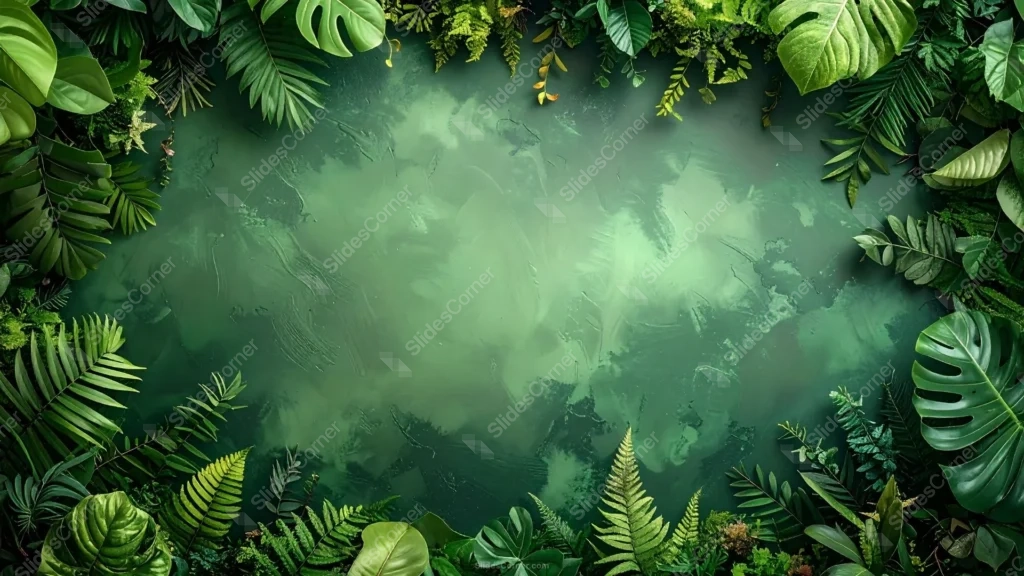
Free tropical leaves background for Google Slides with a misty jungle pond framed by deep green foliage, HD 16:9.
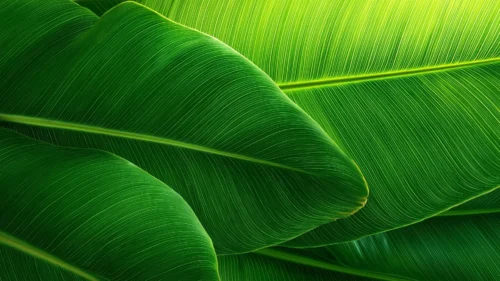
This tropical leaves background for Google Slides goes darker and moodier than a bright jungle scene. Deep green monstera, fern, and palm leaves crowd every edge, framing a center that reads like a still, misty pond deep in the rainforest.
A couple of small yellow-orange leaves break up the green near the top, a quiet detail that keeps the border from reading as one flat mass of color.
What This Tropical Leaves Background For Google Slides Looks Like
The leaf border ranges from near-black forest green at the corners to bright lime ferns lower in the frame, giving the whole ring real depth instead of a single flat tone.
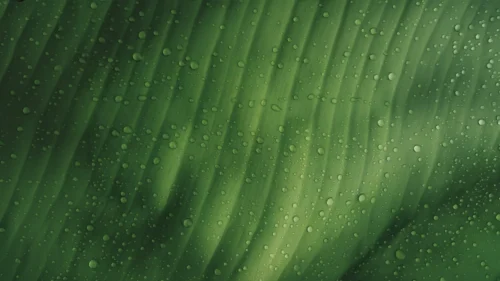
The center surface has a soft, rippled quality, like light catching still water or wet stone, with pale misty patches drifting across a deep teal-green base.
Large monstera leaves with their signature splits anchor the top and bottom corners, while ferns and palm fronds fill in along the sides, keeping the border dense but still varied in shape.
Where This Tropical Leaves Background Fits
It suits travel and adventure brand decks, rainforest or biodiversity conservation presentations, spa and wellness retreat content, and moody nature documentary or podcast cover slides.
The darker, atmospheric palette also works well for slides that want to feel like a real place, deep in a forest, rather than a bright, generic tropical postcard.
Design Choices Behind the Pond and Palette
I gave the center a reflective, watery quality instead of a flat texture, since it evokes an actual clearing where light hits a still pond, giving the piece a sense of place rather than just an abstract green fill.
Keeping the palette deep and saturated rather than bright and airy was deliberate. It reads as “into the jungle” rather than a sunny tropical brochure, which suits a moodier, more atmospheric deck.
I tucked in a couple of small warm-toned leaves among all that green so the eye has somewhere to travel. An entirely green border, however varied in shade, still needs one contrasting note to stay interesting.
How to Apply It in Google Slides
- Open Slide > Change background.
- Click Choose image and upload the downloaded file.
- Select Done. Repeat on each slide you want to match, since Slides applies backgrounds one at a time.
How to Apply It in PowerPoint
- Open your slide, go to Design > Format Background.
- Choose Picture or texture fill, then Insert from file and select the downloaded image.
- Click Apply to All for the whole deck, or leave it on a single title or divider slide.
Legibility Tip for This Tropical Leaves Background
Since the center stays fairly dark, white or pale cream text reads best there. Keep it clear of the leaf border, where the darker corners would swallow lighter text entirely.
Frequently Asked Questions
Is this tropical leaves background free?
Yes, it’s a free download with no watermark and no account required.
Does it work in PowerPoint too?
Yes. It’s a standard image file, so it uploads and applies the same way it does in Google Slides.
What resolution is included?
1920×1080 px, HD 16:9, suited to slides and to a desktop or phone wallpaper.
Can I use it as a wallpaper?
Yes, the 16:9 ratio matches most laptop and desktop screens.
Features at a Glance
- HD 1920×1080 resolution, 16:9 ratio
- Free download, no watermark
- Deep, saturated monstera, fern, and palm leaf border
- Misty, reflective pond-like center with a rippled texture
- Small warm yellow-orange leaf accents among the green
- Works as a Google Slides background, PowerPoint background, or wallpaper
Specs
- 1920 x 1080 px · 16:9 widescreen
- JPG, high quality, no compression artefacts
- PowerPoint · Google Slides · Keynote · Canva
- No watermark · no sign-up
- Free for personal and commercial use
You can use this Moody Rainforest Pond Background for Nature and Travel Presentations as a Wallpaper or use it as a background for slides.
Looking for something different? Browse all our free PPT Backgrounds, or see how to set a background in PowerPoint and Google Slides.