





Green Nature Background For PowerPoint With Teal Leaf Photography
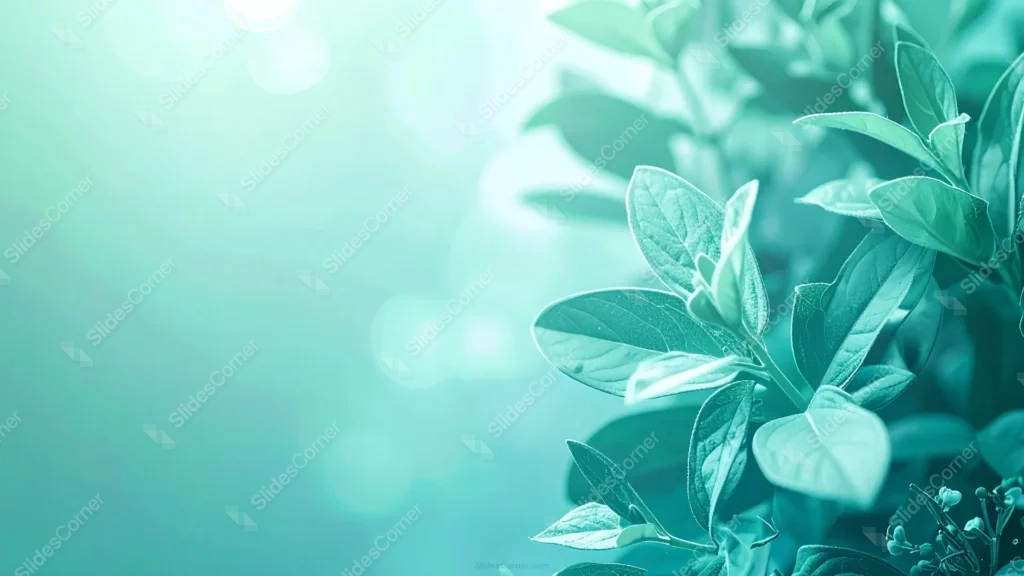
Free green nature background for PowerPoint, real teal-toned leaves with soft bokeh light on the left.
This green nature background for PowerPoint is a real photograph of leaves, graded in a cool teal tint rather than left in natural green.
Sharp foliage fills the right side of the frame while the left falls into a soft, blurred bokeh with a touch of golden light.
What This Green Nature Background Looks Like
Layered leaves fill the right two-thirds of the frame in crisp focus, every vein and edge visible under the cool teal grading.
The left third dissolves into soft, out-of-focus bokeh, with a warm golden-white light flaring gently into the upper-left corner.
A few small blossoms peek in at the lower-right edge, adding a quiet detail without pulling focus from the main foliage.
Where This Green Nature Background For PowerPoint Fits
Its cool, botanical tone suits wellness and skincare brands, sustainability and environmental decks, and any presentation wanting a calm, natural feel.
The soft, open left side also makes it dependable for title slides and text-heavy content.
Design Choices Behind the Teal Leaf Photo
I graded the photograph in a cool teal tint rather than leaving it natural green, so the piece feels calmer and more modern than a straight nature photo.
Keeping the leaves in sharp focus on the right, with every vein and edge visible, while letting the left fall into soft, blurred bokeh, creates a clear division between detail and open space.
Letting a soft golden-white light flare into the upper-left corner warms the coolness just slightly, rather than leaving that side flat and even.
How to Apply It in PowerPoint
- Go to Design > Format Background.
- Choose Picture or texture fill, then Insert from file.
- Click Apply to All for the whole deck.
How to Apply It in Google Slides
- Open Slide > Change background.
- Click Choose image and upload the downloaded file.
- Select Done, repeating on each slide you want to match.
Legibility Tip for This Green Nature Background
Keep text in the soft bokeh area on the left, using white or dark charcoal type depending on where the golden light falls.
Frequently Asked Questions
Is this green nature background free?
Yes, it’s a free download with no watermark and no account required.
Does it work in Google Slides too?
Yes, it’s a standard image file, so it applies the same way in both PowerPoint and Google Slides.
What resolution is included?
1920×1080 px, HD 16:9, suited to slides and to a desktop or phone wallpaper.
Can I use it as a wallpaper?
Yes, the 16:9 ratio matches most laptop and desktop screens.
Features at a Glance
- HD 1920×1080 resolution, 16:9 ratio
- Free download, no watermark
- Real photographed leaves in sharp focus
- Cool teal color grading
- Soft bokeh and golden light on the open left side
- Works as a PowerPoint background, Google Slides background, or wallpaper
Specs
- 1920 x 1080 px · 16:9 widescreen
- JPG, high quality, no compression artefacts
- PowerPoint · Google Slides · Keynote · Canva
- No watermark · no sign-up
- Free for personal and commercial use
You can use this Cool-Toned Botanical Background with Real Leaf Detail as a Wallpaper or use it as a background for slides.
Looking for something different? Browse all our free PPT Backgrounds, or see how to set a background in PowerPoint and Google Slides.