Most popular professional backgrounds
Education School Paper Background for PPT
Download
Free · HD
PPT Background Cute School Border Design
Download
Free · HD
Creative PPT Background for Kids with Green Pencil Border
Download
Free · HD
Torn Page from Notebook on Blue Background for PPT Slides
Download
Free · HD
School PowerPoint Background for Kids – Hand-Drawn Doodle Frame
Download
Free · HD
Back to School Multicolor Free PPT Background
Download
Free · HD

PPT Background for Kids Colorful Watercolor Stripes
Download
Free · HD
Creative PPT Background for Kids – Pastel Brushstroke Frame
Download
Free · HD
Kids PPT Backgrounds
Cute School Frame Background For Google Slides With Colorful Pencils
Download
Free · HD
Colorful Music Notes Frame Background for PowerPoint
Download
Free · HD

Black Chalkboard Background for PowerPoint with Chalk Doodles
Download
Free · HD
Cute School House Frame Background for Google Slides
Download
Free · HD
Cute School Doodle Grid Frame Background for PowerPoint
Download
Free · HD
Green Chalkboard School Background for Google Slides
Download
Free · HD
Lilypad from Toy Story 5 Background for Google Slides
Download
Free · HD

Cute School Frame Background for PowerPoint with Math Blocks
Download
Free · HD
Colorful School Doodle Frame Background for PowerPoint
Download
Free · HD

PPT Background For Kids Colorful With Navy Leaf Blooms
Download
Free · HD
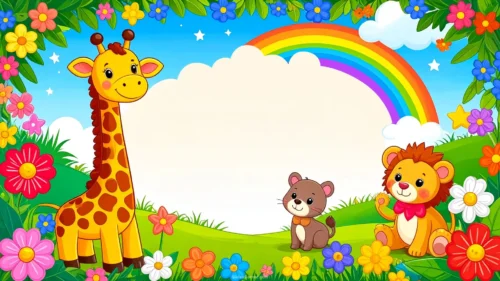
PPT Background for Kids with Cartoon Animals and a Rainbow
Download
Free · HD
Back to School Backgrounds
Cute School Frame Background For Google Slides With Colorful Pencils
Download
Free · HD
Colorful Music Notes Frame Background for PowerPoint
Download
Free · HD
Black Chalkboard Background for PowerPoint with Chalk Doodles
Download
Free · HD
Cute School House Frame Background for Google Slides
Download
Free · HD
Cute School Doodle Grid Frame Background for PowerPoint
Download
Free · HD
Green Chalkboard School Background for Google Slides
Download
Free · HD
Cute School Frame Background for PowerPoint with Math Blocks
Download
Free · HD
Colorful School Doodle Frame Background for PowerPoint
Download
Free · HD
Creative PPT Background for Kids – Pastel Brushstroke Frame
Download
Free · HD
PPT Background for Kids Colorful Watercolor Stripes
Download
Free · HD
Creative PPT Background for Kids with Colorful Frame
Download
Free · HD
Creative PPT Background for Kids with Green Pencil Border
Download
Free · HD
Borders & Frames Backgrounds

Colorful Music Notes Frame Background for PowerPoint
Download
Free · HD
Floral Notebook Frame Background for PowerPoint with Roses
Download
Free · HD
Rainbow School Frame Background for PowerPoint with Backpack
Download
Free · HD
Cute Space Frame Background for Google Slides with Rocket
Download
Free · HD

Cute Bow Frame Background for PowerPoint with Pastel Dots
Download
Free · HD
Cute Flower Hills Cloud Frame Background for PowerPoint
Download
Free · HD

Cute Teddy Bear Scrapbook Cloud Frame for PowerPoint
Download
Free · HD
Cute School Frame Background for PowerPoint with Math Blocks
Download
Free · HD
Cute Pastel Scrapbook Cloud Frame Background for Google Slides
Download
Free · HD
Cute Green Dinosaur School Frame Background for PowerPoint
Download
Free · HD
Paper Backgrounds
Old Book Background For PowerPoint With A Leather Journal Cover
Download
Free · HD
Vintage Photo Paper Background For PowerPoint With Aged Edges
Download
Free · HD
Old Paper Scroll Background For PowerPoint With Loose Ends
Download
Free · HD
Vintage History Background For PPT With Inventor Sketches
Download
Free · HD
Old Paper Background for PPT, Google Slides & Wallpaper
Download
Free · HD
Aged Paper Texture Background for Slides in Soft Cream Tones
Download
Free · HD
History Background for PPT with Aged Scroll
Download
Free · HD
Old Paper Background Free Vintage Kraft Paper Texture
Download
Free · HD
Old Paper Background for Google Slides – Free Vintage Texture
Download
Free · HD
History Background for Slides with an Open Old Book
Download
Free · HD