







Most popular professional backgrounds
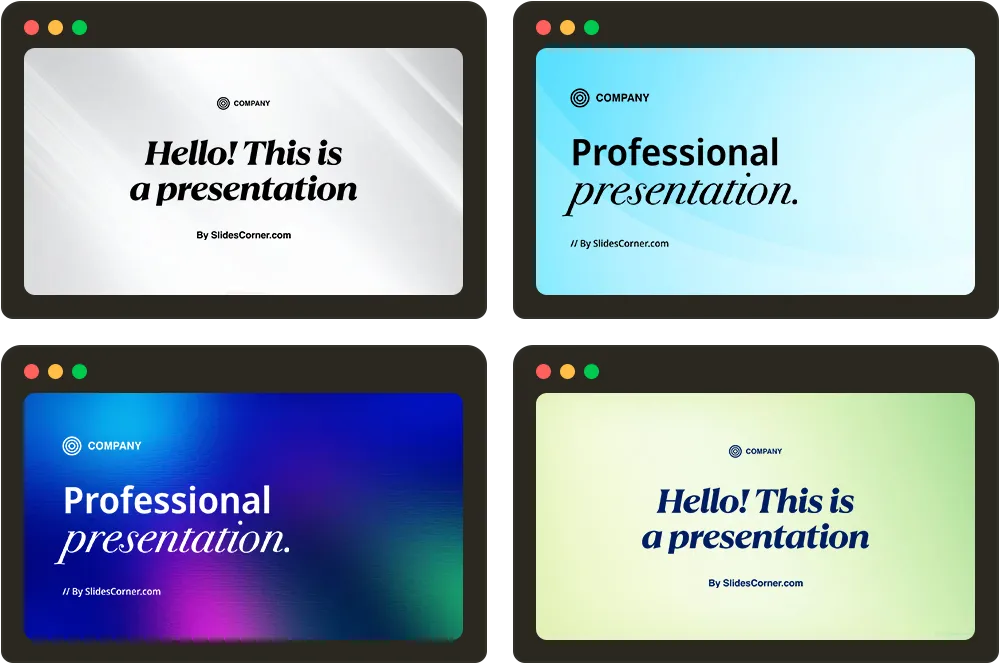
Professional PPT Background Clear and Simple Gray for PowerPoint
Download
Free · HD

Blue Gradients Professional PPT Background for Slides and Wallpaper
Download
Free · HD

Professional PPT Background in Neutral Pastel Blue
Download
Free · HD

Professional PPT Background Clear Light Blue Gradient for Slides
Download
Free · HD

Professional PPT Background Minimalist Neutral Gray Gradient
Download
Free · HD

Professional PPT Background Light Blue Pastel Gradient for Slides
Download
Free · HD


Free Professional PPT Background Light Blue
Download
Free · HD

Professional PPT Background Light Gray Gradient Scene
Download
Free · HD

Red Background Aesthetic Professional free for PowerPoint PPT
Download
Free · HD

Professional PPT Background Clear Gray Gradients for Slides
Download
Free · HD

Business Pastel Green and Yellow Background With Organic Shapes
Download
Free · HD

Blue Professional Backgrounds
Black Blue Background For PowerPoint With Neon Diagonal Lines
Download
Free · HD

Blue Purple Background For PowerPoint With A Diagonal Glossy Band
Download
Free · HD

Blue Gradient Background For PowerPoint With A Radial Spotlight
Download
Free · HD

Blue Polygon Background For PowerPoint With A Low-Poly Gradient
Download
Free · HD

Dark Blue Background For Google Slides With A Glowing Horizon Curve
Download
Free · HD
Blue Background For PowerPoint With A Soft Glowing Curve
Download
Free · HD
Dark Blue Background For PowerPoint With A Glowing Grid Mesh
Download
Free · HD

Water Splash Background For PowerPoint With A Crown Splash
Download
Free · HD

Dark Blue Background For Google Slides With A Mesh Wave Curve
Download
Free · HD

Blue Landscape Background For PowerPoint With Layered Dunes
Download
Free · HD

Purple Pink Background For PowerPoint With A Vivid Ribbon Wave
Download
Free · HD

Dark Blue Background For PowerPoint With A Smoky Wave Glow
Download
Free · HD

Blue Green Background For PowerPoint With Wave Frequency Lines
Download
Free · HD

Blue Hexagon Background For PowerPoint With Embossed 3D Tiles
Download
Free · HD



Gray & Neutral Professional Backgrounds
White Marble Background For PowerPoint With Fine Grey Veining
Download
Free · HD

White Background For PowerPoint With Hexagon Corner Accents
Download
Free · HD

White Background For PowerPoint With Isometric Hexagon Lines
Download
Free · HD

Dark Grey Texture Background For PowerPoint With Slate Cracks
Download
Free · HD
Dark Background For PowerPoint With Overlapping Geometric Triangles
Download
Free · HD

Beige Background For PowerPoint With Neutral Wave Bands
Download
Free · HD

Clean Professional PowerPoint Background Neutral Gray
Download
Free · HD

Professional PPT Background in a Dark Navy Textured Gradient
Download
Free · HD

Professional PPT Background Gray Gradient for Slideshows
Download
Free · HD

Black Solid Background for Slides with Soft Gradient Free Download
Download
Free · HD

Professional PPT Background Clean Gray Gradient free for PowerPoint
Download
Free · HD

Professional PPT Background Clear and Simple Gray for PowerPoint
Download
Free · HD
Professional PPT Background Gray Gradient Lines
Download
Free · HD

Professional PPT Background Clean Gray for PowerPoint
Download
Free · HD

Professional PPT Background Light Gray Gradient Scene
Download
Free · HD
Professional PPT Background Minimalist Neutral Gray Gradient
Download
Free · HD
Gradient Professional Backgrounds
Green Studio Background For PowerPoint With Overhead Spotlight
Download
Free · HD

Blue Purple Background For PowerPoint With A Diagonal Glossy Band
Download
Free · HD
Blue Gradient Background For PowerPoint With A Radial Spotlight
Download
Free · HD
Dark Green Background For PowerPoint With A Glowing Smoky Wave
Download
Free · HD
Blue Polygon Background For PowerPoint With A Low-Poly Gradient
Download
Free · HD
Dark Blue Background For Google Slides With A Glowing Horizon Curve
Download
Free · HD
Blue Background For PowerPoint With A Soft Glowing Curve
Download
Free · HD
Dark Blue Background For PowerPoint With A Glowing Grid Mesh
Download
Free · HD
Water Splash Background For PowerPoint With A Crown Splash
Download
Free · HD
Dark Blue Background For Google Slides With A Mesh Wave Curve
Download
Free · HD
Blue Landscape Background For PowerPoint With Layered Dunes
Download
Free · HD
Black Orange Background For PowerPoint With A Warm Glow
Download
Free · HD

Purple Pink Background For PowerPoint With A Vivid Ribbon Wave
Download
Free · HD
Dark Red Background For Google Slides With Vertical Pinstripes
Download
Free · HD

Dark Red Background For PowerPoint With Crossing Ribbons
Download
Free · HD

Black Background For Google Slides With A Wave Line Curve
Download
Free · HD

Minimalist Professional Backgrounds
Blue Gradient Background For PowerPoint With A Radial Spotlight
Download
Free · HD
Wood Background For PowerPoint With A Light Whitewashed Grain
Download
Free · HD

Blue Background For PowerPoint With A Soft Glowing Curve
Download
Free · HD
White Background For PowerPoint With Hexagon Corner Accents
Download
Free · HD
Water Splash Background For PowerPoint With A Crown Splash
Download
Free · HD
Blue Landscape Background For PowerPoint With Layered Dunes
Download
Free · HD
Light Purple Background For PowerPoint With A Plain Lavender Fade
Download
Free · HD

Light Blue Background For Google Slides With A Plain Diagonal Fade
Download
Free · HD


Medical Background For PowerPoint With A Minimal Light Blue Cross
Download
Free · HD


Dark Blue Background For PowerPoint With A Diagonal Fade To Black
Download
Free · HD

Orange Texture Background For PowerPoint With A Warm Vignette Glow
Download
Free · HD
White Silk Background For Google Slides With A Soft Blue Haze
Download
Free · HD