This is a Google Slides and PowerPoint free template designed for aesthetic presentations.
A free medieval history template with parchment tones and gothic type — 30 editable slides for PowerPoint and Slides.
This template is for anyone standing in front of a room to talk about the centuries between Rome’s fall and the Renaissance — a medieval history presentation template built around parchment tones, gothic type, and the kind of restrained gold-and-ink palette you’d expect on an illuminated manuscript. It works as a free, fully editable download for both PowerPoint and Google Slides, and every layout inside it was built to hold real historical content: kingdoms, guilds, cathedrals, chronicles, sieges, fairs.
Who This Medieval History Template Is For
History teachers building a semester’s worth of lectures, university students defending a thesis on feudalism or the Black Death, museum educators prepping a docent training deck, or anyone pitching a documentary, book, or heritage tourism project set in the Middle Ages will find a home here. The tone sits somewhere between academic and editorial — serious enough for a university seminar, warm enough that it doesn’t feel like a dry textbook slide.
Design Decisions Behind the Parchment and Gothic Type
I picked Grenze Gotisch for headlines because it reads as unmistakably medieval without tipping into illegible blackletter — at large sizes on a title slide it has real presence, but it stays a display face only, never body copy. Eyebrows, figure labels and numerals run in Cinzel, a capitals-only face modeled on Roman inscriptions, which gives the deck its “carved stone” feel in small doses. Body text and pull quotes sit in EB Garamond, an old-style serif with generous x-height that holds up in a lit lecture hall or on a projector from the back row — legibility mattered more than period accuracy for the paragraphs people actually have to read.
The palette follows the same logic. Parchment (#EDE0C8) and ink (#1B1714) carry the contrast load, since that pairing is what needs to survive a bad projector and ambient light. Vermilion (#9B2226), gold leaf (#C8A02C), ultramarine (#1F3A6E) and verdigris (#4A6C4A) are accent colors, pulled straight from the pigments a medieval scribe would have actually had access to — cinnabar red, gold leaf, lapis lazuli, copper green. I left the lower third of most content slides empty on purpose: history slides get overloaded with dates and names fast, and that breathing room is where a presenter’s own image, map, or figure is meant to go without fighting the layout for space.
The layout choices themselves are built around how historical narratives actually unfold — chronology, cause and effect, comparison, primary sources — rather than generic business slide types repurposed with a new font.
What makes this template distinct:
- Illuminated-manuscript styling: gothic display type, capital-letter drop caps, and a genuine period color story instead of a generic “old paper” filter
- 30 fully editable slides covering narrative, data, and structural layouts
- Native, editable charts, a Gantt-style schedule, and a map placeholder with numbered pins
- Circular medallion treatment for portraits, icons, and figures throughout
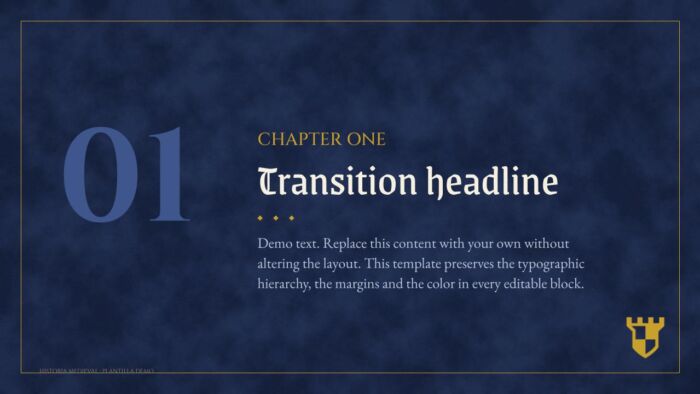
- Built-in section dividers on ultramarine for splitting a deck into chapters
- No watermark, no locked elements, no forced attribution beyond the credits slide
What’s Inside: The Slide Inventory
- Cover — full title treatment in Grenze Gotisch over a parchment background
- Table of contents — two-column index with Roman numerals and small iconography
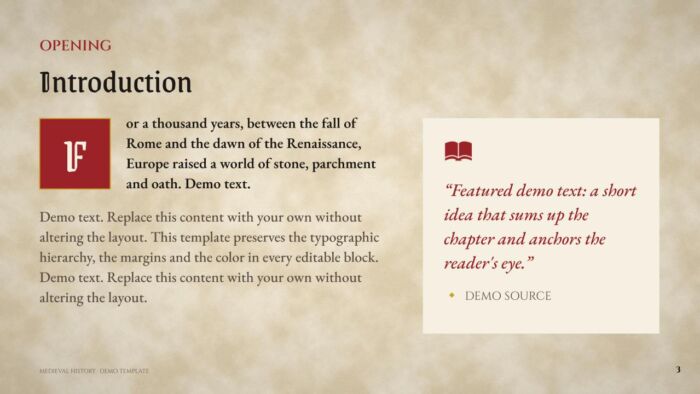
- Introduction — running body text with an illuminated drop cap and a side quote block
- Section dividers (x2) — full-bleed ultramarine chapter breaks, mirrored compositions
- Two-column context slide — body copy paired with a highlighted stat card
- Team/figures slide — three profiles in circular medallions, for “the court” or contributor credits
- Problem/solution pair — mirrored panel layouts with medallion and icon list, meant to sit side by side
- Before/after comparison — light-and-dark split slide for contrasting two states
- SWOT-style matrix — four cards for strengths, weaknesses, opportunities, threats
- Three pillars slide — equal three-column layout with icon medallions
- Numbered roadmap — thin-rule list for plans or sequential points
- Statement slide — one large, forceful line of text for a chapter-closing idea
- Horizontal timeline — milestones alternating above and below the line
- Case study, three-card process — challenge, solution, result
- Half-slide image gallery and full-bleed image slide — for portraits, maps, or artifact photography
- Dual comparison cards — two dark full-page panels on parchment
- Breakdown slide — three vertical cards with square icon frames
- Quote slide — color panel with a decorative quotation mark
- Featured figure slide — one large number with three supporting facts in Roman numerals
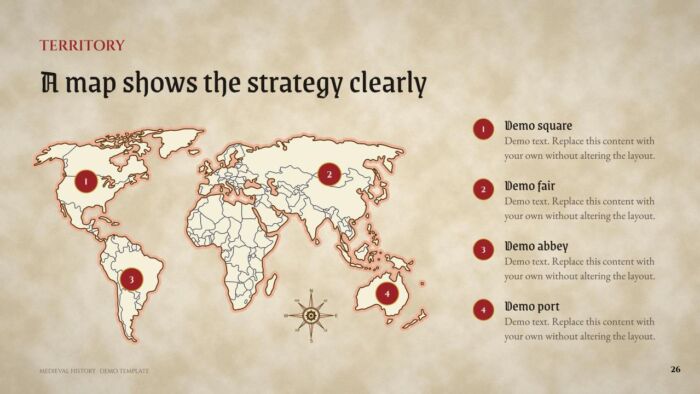
- Strategy list with headline panel, Gantt-style schedule, native column chart, and map slide with numbered pins and a legend
- Credits, license, and fonts/colors reference slides, plus a closing “thank you” slide
Colors, Fonts, and Format
The template ships as a 16:9 widescreen deck (1920×1080 px), downloadable as a .pptx file with a matching copy in Google Slides — same layouts, same theme, no conversion loss. Both files use an editable slide master/theme, so colors and fonts update globally instead of slide by slide.
Typefaces:
- Headings and titles: Grenze Gotisch (fallback: a blackletter system font such as Old English Text MT, or a bold serif if blackletter isn’t available)
- Eyebrows, figures and labels: Cinzel (fallback: Trajan Pro or another small-caps/engraved serif)
- Body text and quotes: EB Garamond (fallback: Garamond or Georgia)
Palette:
- Parchment
#EDE0C8 - Ink
#1B1714 - Vermilion
#9B2226 - Gold leaf
#C8A02C - Ultramarine
#1F3A6E - Verdigris
#4A6C4A
How to Use This Template in PowerPoint
Download the .pptx and open it directly — nothing to convert. To change fonts, colors, or the position of recurring elements (like the eyebrow labels or page numbers) in one pass, go to View > Slide Master and edit the master layouts rather than individual slides; anything you change there cascades to every slide using that layout. To swap a placeholder photo, right-click the image, choose Change Picture, and pick your file — this keeps the existing crop and frame instead of dropping a new image at its native size and breaking the composition. Theme colors live in Design > Variants > Colors, so a single edit there updates every accent across the deck instead of hunting slide by slide.
How to Use It in Google Slides
Open the shared file and go to File > Make a copy to get your own editable version, or use File > Import slides to pull specific layouts into an existing deck. Global color and font changes happen under Slide > Edit theme — the same one-place-updates-everything logic as PowerPoint’s slide master. When replacing images, drag the new file directly onto the existing placeholder so it inherits the crop instead of resizing freely.
A couple of habits carry across both tools. For readability, don’t drop body text below roughly 18pt when projecting in a bright room — EB Garamond is legible, but only at a size that survives ambient light. And resist the urge to bold or enlarge more than one element per slide: the hierarchy here is deliberately built around one eyebrow, one headline, one body block, and stacking extra emphasis on top of that structure is what makes a slide stop reading clearly from the back row.
FAQ
Is this medieval history template really free? Yes. It’s a free download with no watermark and no locked elements, distributed only through SlidesCorner.
Does it work in Google Slides, or only PowerPoint? Both. The .pptx and the Google Slides copy share the same layouts, fonts, and theme colors.
Can I change the colors and fonts? Yes, and it’s meant to be edited that way — update the theme once (Slide Master in PowerPoint, Edit theme in Google Slides) and every slide using those styles updates together.
What size is the file? 16:9 widescreen at 1920×1080 px, the standard resolution for modern projectors and screens.
Can I use it for work or client presentations, and do I need to credit SlidesCorner? You can use it for personal, academic, and client work. Keep the credits slide in the deck, and don’t register the template or its elements as your own trademark, resell it, or redistribute the file itself as a product.
Create and edit this Illuminated Medieval History Template for History and Humanities Presentations with Google Slides, right in your browser with no special software required. Multiple people can work at the same time, and everyone will always have the latest version. This Teachers, History, School and creative theme is also available for PowerPoint.
Choose the layout you like from this template, customize the icons, modify the titles of your presentation and highlight the most important content to impress your audience.
To get your viewers's attention you need to create the best presentation possible. With a neat and clear design you will cause a great impact. Use this Medieval History Presentation Template for History Class Decks to communicate your idea clearly so your audience gets the message quickly and easily. A nice and well designed template like this Illuminated Medieval History Template for History and Humanities Presentations will give you the professional image you need for a successful presentation.
- Template 100% editable and easy to modify colors, images and text
- Different slides to impress your audience
- Choose the layout from your theme that best suits your needs
- Template contains maps, tables, graphs and time lines that can be easily edited
- Includes free icons to enhance your presentation
- This theme was designed to be used in Google Slides and Microsoft PowerPoint
- 16:9 widescreen format suitable for all types of screens
- Includes information about fonts, colors, and credits of the free resources used
Download free template
Tags for this theme
About Google Slides and how to get free templates
Google Slides is a very powerful and free tool that has become very popular among educators and business people and you can use it to deliver your presentations. Here you can find completely free Google Slides themes so you can create your presentation like a real pro.
In the last years, Google Slides has evolved including several of the features other presentation tools offered. You can easily access, edit and make presentations on your desktop, tablet or smartphone.
Presentations are easily shared and edited in real time so you can collaborate on your theme at the same time. In this Illuminated Medieval History Template for History and Humanities Presentations you can write comments and assign tasks to develop ideas as a team. Learn more about Google Slides here.
You can check our free Google Slides Themes and add them to your Google Drive account. Just go to the Download Theme section.
Google Slides has many benefits for presenters. It encourages teams to collaborate online & real-time, it is free and more.