Text disappearing over your background image? Here are the five techniques designers use to keep slides readable, and when to use each one.
You found a background you like. You dropped your title on top of it. And now the text sits there, half-swallowed by a bright patch in the image, and you are squinting at your own slide trying to decide whether it is readable or whether you have just been staring at it too long.
Almost everyone solves this the same way: they add a shadow to the text, decide it is fine, and move on. It is rarely fine. On a laptop, at arm’s length, in a dark room, most things look fine. In a conference hall with the lights half up, that same slide turns into a smear.
The good news is that this is not a taste problem. Legibility over an image is a solved problem in design, with a handful of specific techniques and clear rules about when each one applies. None of them require design software. All of them work in PowerPoint and Google Slides. Once you know them, choosing a photographic background stops being a gamble.

Why Text Over Images Fails
Text needs contrast against whatever is behind it. A solid color background gives you one fixed relationship — dark text on light, light text on dark — and it holds across the entire slide.
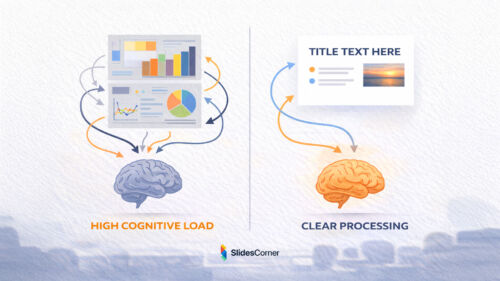
A photograph does not. It gives you hundreds of relationships that change from pixel to pixel. Your headline might start over a dark corner and end over a bright sky. The letters over the dark part are perfectly readable. The letters over the sky have essentially vanished. Your eye fills in the missing shapes because you already know what the word says, which is exactly why designers are bad judges of their own slides, and why the audience seeing it for the first time struggles when you do not.
There is a second problem underneath the first: visual noise. Even where contrast is technically sufficient, a busy area of an image competes with letterforms. Foliage, brickwork, crowds, fabric texture, anything with detail at roughly the same scale as your type will make the text harder to parse, because your visual system has to separate letters from background pattern before it can read them. Contrast solves brightness. It does not solve busyness. You need to handle both.
The accessibility benchmark most professionals work to is a contrast ratio of 4.5:1 between text and background for body-sized text, and 3:1 for large text. That comes from the WCAG guidelines, and while nobody is auditing your deck, the number is a useful floor. If you want the full reasoning behind it, we covered it in our guide to color contrast and accessibility in slide design.
The rest of this article is about the layer you put between the image and the text so that number is achievable.
Technique 1: The Scrim
A scrim is a semi-transparent layer of flat color covering the whole image, sitting between the background and your text. In theatre, it is a piece of fabric that softens what is behind it. On a slide, it is a rectangle.
It is the least glamorous technique and the one I reach for most, because it is the only one that guarantees a consistent result across the entire slide. You are no longer hoping your text lands on a calm part of the image. You have made the whole image calmer.

How to build it: draw a rectangle covering the full slide, fill it with black or white, set transparency somewhere between 30% and 60%, remove the outline, and send it behind your text but in front of the background. In PowerPoint: Insert → Shapes → Rectangle, then Format Shape → Fill → Solid fill → Transparency. In Google Slides it is the same path through the fill color picker’s custom transparency slider.
Choosing the value: start at 40% and adjust. Below 25% you usually have not fixed anything. Above 65% you have effectively thrown the image away, and at that point you would be better served by one of our plain backgrounds, which will render more cleanly and weigh far less.
Choosing black or white: black scrims deepen an image and read as serious, cinematic, a little dramatic. White scrims lift it and read as airy and clean, but they wash out color aggressively — a white scrim over a photograph often produces something that looks faded rather than light. If you are unsure, black at 40% is the safer default.
A refinement worth the extra minute: instead of pure black, use a very dark version of a color already in the image. A deep navy scrim over a photograph of a coastline, a near-black brown over a wood texture. The slide stops looking like a photo with a grey sheet over it and starts looking designed.
Technique 2: The Gradient Overlay
Same idea, but the layer fades. Opaque where your text sits, transparent where you want the image to show.
This is the technique behind almost every magazine cover and film poster you have ever seen, and it exists to resolve the tension the scrim cannot: you want the image to be visible and the text to be readable, and a flat scrim compromises both.

How to build it: draw the same full-slide rectangle, but set the fill to Gradient. Use two stops of the same color — black to black — and change only the transparency: 0% at one end, 85–100% at the other. Two different colors will produce a muddy band where they meet. One color with varying transparency produces a clean fade.
Direction is a real decision. Bottom-to-top is the default for a reason: it grounds the composition, and it matches the way photographs are usually framed, with sky at the top. Left-to-right suits a split layout where text occupies one side and the image breathes on the other. Top-to-bottom works when your headline sits above a landscape.
The most common mistake is making the gradient too short. A fade that goes from opaque to transparent in the top 15% of the slide creates a visible edge — a hard line across your image that immediately reads as amateur. Let the gradient travel at least half the slide. A long, slow fade is invisible. A short one announces itself.
Gradient overlays work beautifully over photographs and over richer illustrated backgrounds — the kind of organic shapes, florals and vintage textures in our aesthetic backgrounds collection — where the imagery is part of the message and flattening it with a full scrim would defeat the purpose.
Technique 3: The Solid Panel
Rather than treating the whole slide, you place your text inside a defined shape with a solid or near-solid fill — a band across the lower third, a card on one side, a block behind a pull quote.
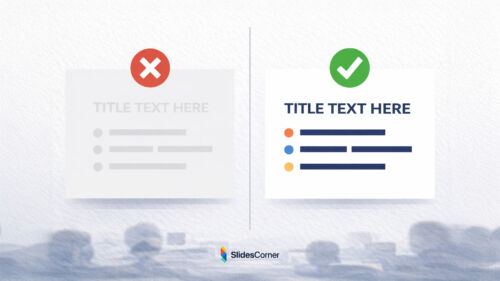
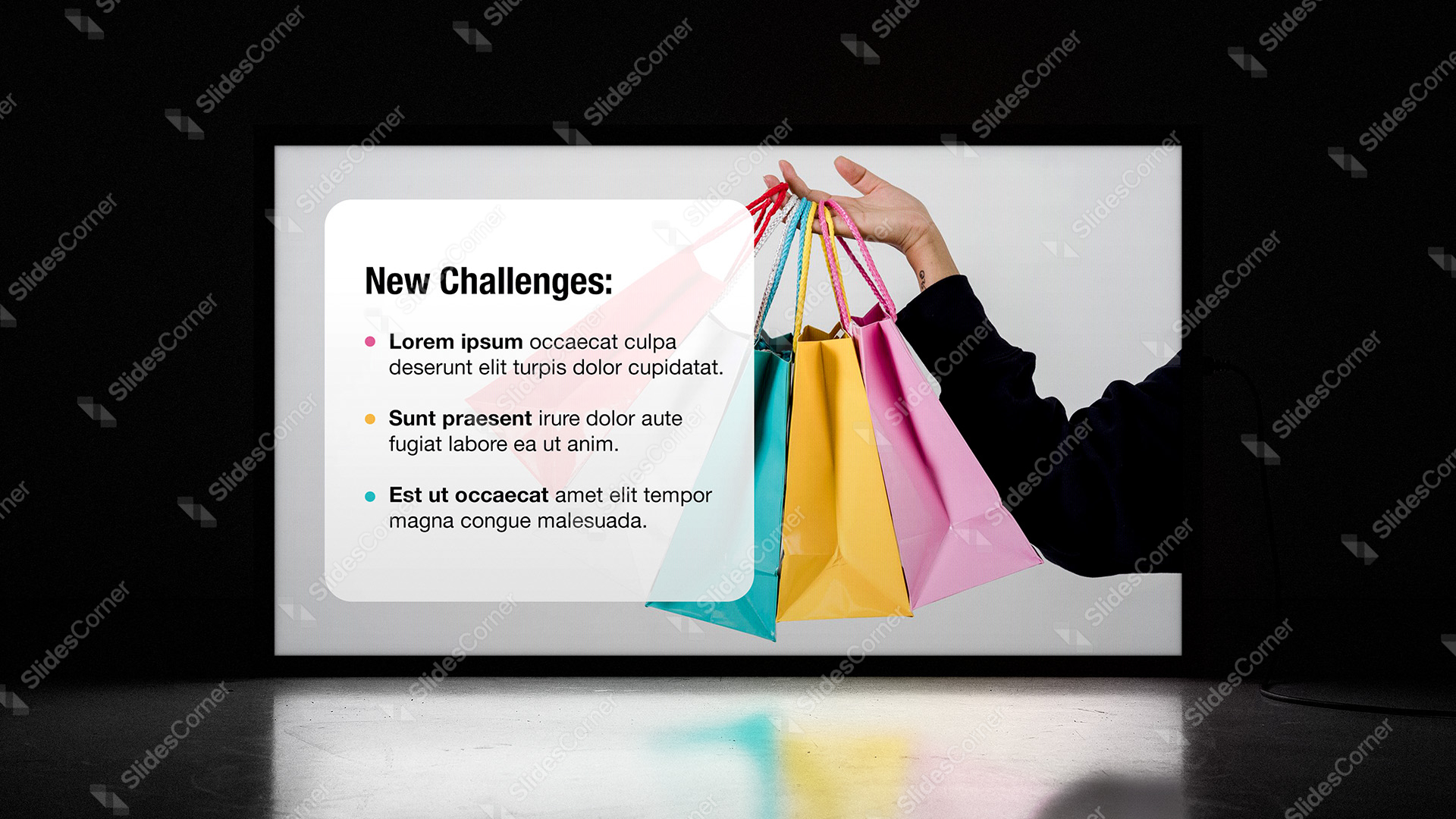
This is the strongest option when you have a lot of text. Scrims and gradients are excellent for a title and a subtitle. They struggle when you are asking someone to read four bullet points, because sustained reading needs stable, uninterrupted contrast, and even a scrimmed photograph still has texture moving underneath the words.

How to build it: a rectangle at 85–100% opacity, generous internal padding — at minimum the height of one line of text on every side — and your text inside it. Resist the urge to add a border. The edge of the shape is already the border.
Where it shines: data slides, agenda slides, anything with a list. It is also the honest answer when you have been handed a busy image you cannot change and the content genuinely needs to be read.
Where it fails: when the panel covers the subject of the photograph. If you are using an image of a person and your panel lands across their face, the image has stopped doing any work and you should switch to a plain background rather than pretend.
Technique 4: Selective Blur
Blur a region of the background and set the text over the blurred area. The image stays present, recognizable, and in color — but the detail that was competing with your letterforms is gone.
This addresses the noise problem directly rather than the brightness problem, which makes it the right tool when the image has adequate contrast but too much detail. Foliage behind white text is the classic case: bright enough, but the leaves chop the letters into pieces.

How to build it in PowerPoint: duplicate the background image, apply Picture Format → Artistic Effects → Blur to the copy, then crop the blurred copy to the region you need and place it under the text. In Google Slides there is no native blur, so blur the region in any image editor first and insert it as a separate image — or use a scrim instead, which is a perfectly good substitute.
Use it sparingly. Blur is a heavier effect than it looks and it dates quickly when overdone. One blurred region on a title slide is elegant. Blur on every slide of a deck starts to feel like a filter.
Technique 5: Choosing the Quiet Area
The technique that requires no shapes at all: read the image first, then decide where the text goes.
Most photographs have a naturally calm region — an expanse of sky, a shadowed wall, a stretch of water, an out-of-focus foreground. Placing your text there can solve the entire problem before you add a single layer.
How to find it fast: squint at the image until detail disappears and you are left with rough patches of light and dark. The largest uniform patch is your text area. This works because squinting approximates what the back of the room sees.
The catch, and the reason this technique is listed last rather than first: it constrains your layout to wherever the image happens to be quiet. If the calm region is the top-right corner, your headline goes to the top-right corner, whether or not that is where the hierarchy wants it. Sometimes that is a happy accident. Often it is a compromise you should not accept, and a scrim gives you your layout back.
The best version of this technique is to run it earlier — at the point of choosing the background rather than the point of placing the text. When you browse a collection like our professional backgrounds, you are not only choosing an image you like. You are choosing where you will be allowed to put your words.
What About Text Shadow and Outline?
Text shadow is the reflex fix, and it is worth being precise about why it disappoints.
A drop shadow adds a dark edge around light letters, which does raise local contrast. But it does it by making the letterforms slightly heavier and slightly blurrier at every edge, and at the sizes and viewing distances involved in a presentation, that blur costs you roughly as much legibility as the contrast gains you. On a bright background, a heavy shadow makes text look grimy rather than crisp.
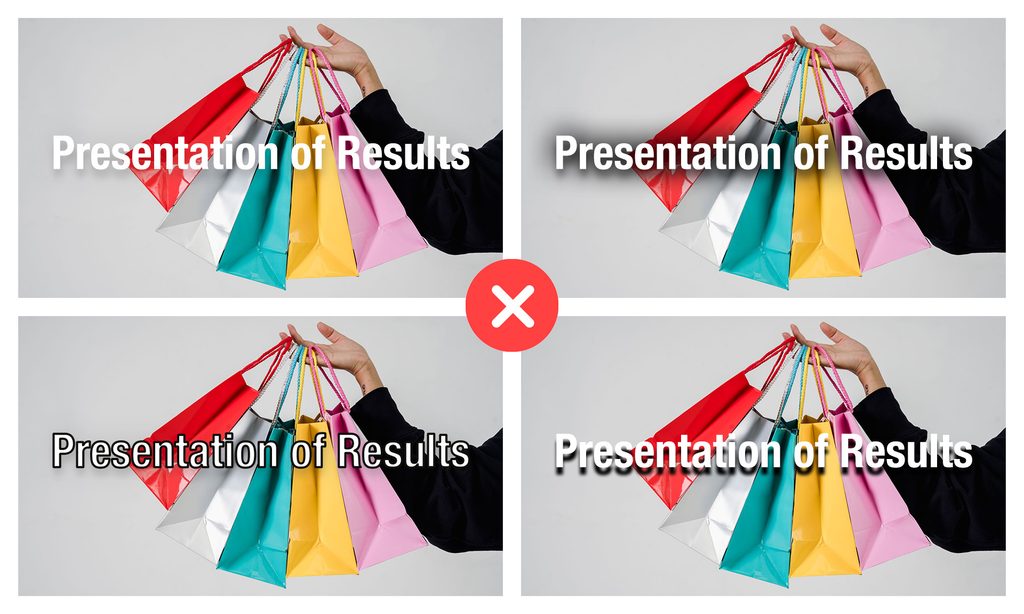
There is one place it earns its keep: a tight, subtle shadow — small offset, low opacity, small blur radius — over an image that is already mostly working, as insurance against a few uneven pixels. As a rescue for text over a genuinely difficult background, it does not work, and the deck it produces is the one people describe as looking “a bit off” without being able to say why.
Text outline is worse. It changes the shape of the letters, and letterform recognition is how reading works. Skip it.
If your text needs help, give it a layer, not an effect.
Choosing Between Them
A short decision path that covers most real slides:
- A title slide with a few words? Gradient overlay. It preserves the image, which is the point of using a photograph for a title.
- A content slide with several lines? Solid panel, or a scrim at 45–55%. Sustained reading needs stable contrast.
- An image that is bright and detailed but well-lit? Selective blur, or a darker scrim than you think you need.
- An image with a large calm area that matches your layout? Use it as-is, and add a light scrim only if the projector turns out to be dim.
- Fighting the image on every slide? The image is wrong for this deck.
That last case is not defeat. A large share of the most sophisticated decks in circulation use no photographic backgrounds at all, and let typography carry the design — a point we make in more depth in our piece on minimalism in slide design.
The Two-Meter Test
Before you call a slide finished, do this. Set the presentation to full screen, stand up, and walk two meters back from your monitor. Read the slide.
Everything wrong with contrast becomes obvious at that distance, because you have removed the two things that were flattering your design: proximity, and your own knowledge of what the text says. A slide that survives two meters on a laptop will survive a projector. A slide that does not will fail in front of an audience, and you will find out at the worst possible moment.
The techniques in this article take about ninety seconds each to apply. The test takes ten. Together they are the difference between a background that supports your presentation and one that quietly competes with it.
Questions & Answers
What transparency should I use for a background overlay?
Start at 40% and adjust to the image. Bright, high-detail photographs often need 50–60%. Dark or already muted images may only need 20–30%. The reliable check is not the number but the two-meter test: step back from your screen and see whether the text still reads cleanly.
Should my overlay be black or white?
Black in most cases. Black scrims deepen the image and support light text well, while white scrims tend to wash photographs out and produce a faded rather than a light result. Use white when you specifically want dark text on a light field and the image is muted enough to survive it.
How do I add a transparent overlay in Google Slides?
Insert a rectangle covering the slide, open the fill color picker, choose Custom, and lower the transparency slider. Set the border to none, then right-click the shape and use Order → Send backward to place it behind your text but in front of the background image.
Is a text shadow enough to make text readable over a photo?
Not on its own. A shadow raises local contrast but also softens the edges of every letter, and at presentation viewing distances that softening cancels most of the benefit. Use a subtle shadow as a finishing touch over a background that already works, not as the fix for one that does not.
What contrast ratio should presentation text have?
The WCAG accessibility guidelines set 4.5:1 for normal text and 3:1 for large text. Slide headlines usually qualify as large text, but projectors, room lighting and viewing distance all reduce effective contrast, so treating 4.5:1 as the floor for everything is the safer approach.
Can I put text over any background image?
Technically yes, with a strong enough overlay — but at that point you have hidden the image, and a plain background would look better and load faster. If a background needs more than about 65% coverage to be usable, it is the wrong background for that slide.
Why does my slide look fine on my laptop but bad on the projector?
Projectors have far lower contrast than laptop screens, and ambient room light reduces it further. Dark greys collapse toward black and subtle tonal differences disappear entirely. Design with more contrast than looks strictly necessary, and never make a final judgment on a slide at close range on a bright monitor.